
NUVIS S - Compact camera NIKON - Free user manual and instructions
Find the device manual for free NUVIS S NIKON in PDF.


| Product type | Compact APS camera (Advanced Photo System) |
| Brand | Nikon |
| Model | Nuvis S |
| Dimensions (closed) | 93 x 65 x 32 mm |
| Weight (without battery) | 230 g |
| Power source | 1 CR2 3V lithium battery |
| Battery life | Approximately 10 films of 25 shots (half with flash) |
| Lens | Nikon zoom 22.5-66 mm f/5.2-7.5 (equivalent to 28-82.5 mm in 35mm format) |
| Optical zoom | 3x |
| Focus | Passive autofocus, from 0.45 m to infinity |
| Built-in flash | 4 modes: auto, forced, off, slow sync. Range: 0.45-3.7 m (wide-angle), 0.45-2.6 m (telephoto) |
| Red-eye reduction | Yes (built-in illuminator) |
| Compatible film | IX240 cassette (APS) of 15, 25 or 40 exposures |
| Print formats | C (classic 2:3), H (wide vision 9:16), P (panorama 1:3) |
| Viewfinder | Real-image zoom, 85% coverage (H format), diopter adjustment -1.5 to +1.5 D |
| Self-timer | 10 seconds |
| Remote control | Optional, infrared, range < 5 m |
| Data recording | Date, time, title (30 titles in 12 languages), desired number of prints (1 to 9) |
| Maintenance and cleaning | Clean with a soft dry cloth, avoid solvents. Remove battery during prolonged storage. |
| Safety | Do not disassemble, avoid water, do not look at the sun through the viewfinder, keep out of reach of children |
| Spare parts and repairability | Have any repairs or remote control battery replacement done by a Nikon authorized service center |
Frequently Asked Questions - NUVIS S NIKON
User questions about NUVIS S NIKON
0 question about this device. Answer the ones you know or ask your own.
Ask a new question about this device
Download the instructions for your Compact camera in PDF format for free! Find your manual NUVIS S - NIKON and take your electronic device back in hand. On this page are published all the documents necessary for the use of your device. NUVIS S by NIKON.
USER MANUAL NUVIS S NIKON
natural_image
Abstract geometric logo with black triangles and a circle (no text or symbols)CE
Thank you for purchasing the Nikon Nuvis S camera.
Your new Nikon camera employs the Advanced Photo System (IX240 system).
The symbol 🔒* appears on all Advanced Photo System (APS) format cameras.
Be sure to read this instruction manual thoroughly before use, and keep it close at hand.
*The Advanced Photo System symbol is a trademark of all IX240 products.
Take some trial shots.
Before taking important pictures, be sure to take a few trial shots first to familiarize yourself with the camera and all of its features.
Accessories
Check that you have the item shown below before using your camera.
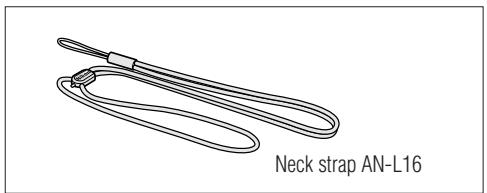
natural_image
Line drawing of a neck strap with labeled end (AN-L16), no other text or symbols presentOptional accessories
- Camera case CS-L20
(Remote control unit can be stored inside pocket.) - Remote control unit (P. 25)
- Remote control unit case CML-L1
Attaching the strap
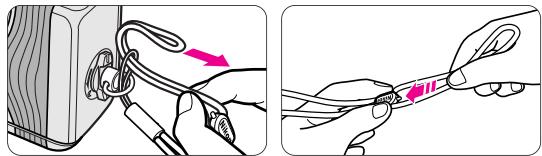
Attach the strap by inserting it through the strap slot and adjust the length using the lug on the strap as shown.
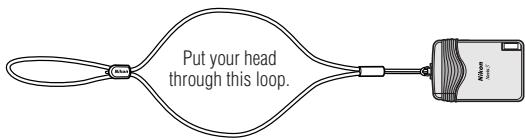
Your Nikon camera features:
Choice of three print types (C, H, P), which can be mixed on the same roll. P. 14
natural_image
Black-and-white photo of a girl standing on a wooden bridge with houses and trees in the background (no visible text or symbols)C-type (classic)
Aspect ratio = 2:3
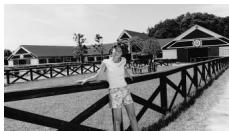
natural_image
Black-and-white photo of a person standing on a wooden bridge with houses and trees in the background (no visible text or symbols)H-type (wide-vision)
Aspect ratio = 9:16
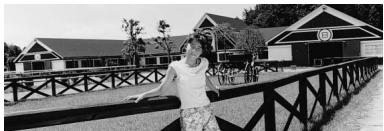
natural_image
Black-and-white photo of a woman standing on a wooden bridge with residential buildings in the background (no visible text or symbols)P-type (panorama)
Aspect ratio = 1:3
The 3x power zoom lens covers the range of focal length from 22.5mm to 66mm. P. 15
Title imprinting (ex. "MERRY CHRISTMAS" or "CONGRATULATIONS") on the back of the pictures. P. 28
The number of desired prints (1 to 9) can be specified frame by frame at any time while the film is loaded. P. 27
When the available light is low or the subject is backlit, the camera automatically fires the flash. P. 21
Remote-controlled operation (optional) is possible. P. 25
MRC (Mid-Roll Change) allows you to switch film cartridges whenever you want. When the film cartridge is reloaded, the camera automatically advances the film to the frame immediately after the last exposed frame. P. 19
Photographing subjects as close as 0.45m (1.5 ft.) is possible. P. 26
A stainless steel slide cover protects the lens, viewfinder window, and LCD panel when the camera is not in use.
Contents
Foreword 2
Accessories 3
Your Nikon camera features 4
Camera parts 6-7
LCD panel indications 7
Tips on using the Nuvis S 8
Getting started
Installing the battery 9
Checking battery power 9
Loading the film 10-11
IX240 film cartridge 11
Data recording function 12
Basic operation
Holding the camera properly 13
Shutter release operation 13
Viewfinder indications 14
Selecting a print type 14
Adjusting diopter 15
Zooming 15
Focusing and shooting 16-17
Difficult-to-focus subjects 17
Removing the film 17-18
Take the exposed film cartridge to a photo lab 18
To rewind the film in mid-roll 19
Advanced operation
How to use focus lock 20
Selecting the flash mode 21
Auto flash photography 21
Flash cancel mode 22
Anytime flash mode 22-23
Slow sync flash mode 23
Red-eye reduction mode 24
Remote control photography (optional) 25
Self-timer operation 26
Close-up shooting 26
Specifying the number of desired prints 27
Title recording function 28-29
Setting the date and time 30-31
Other information
Troubleshooting 32-33
Specifications 34-35
For safe handling of the camera (WARNING/CAUTION) 36-37
Camera parts
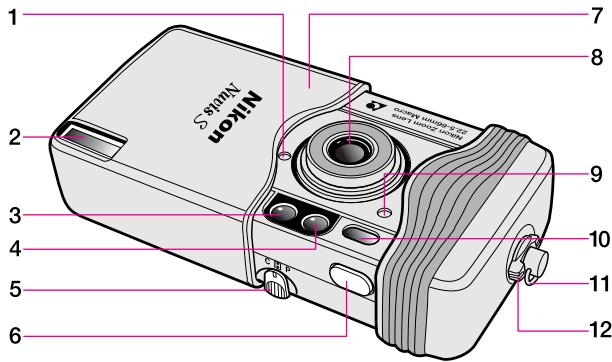
1 Auto exposure metering window
2 Flash (P. 21)
3 AF assist illuminator/Red-eye reduction lamp (P. 24)
4 Viewfinder window (P. 14)
5 CHP selector (P. 14)
6 Shutter release button (P. 13)
7 Slide cover (power switch) (P. 9)
8 Lens
9 Remote control reception sensor (P. 25)
10 Autofocus window
11 Neck strap slot (P. 3)
12 Cartridge lock release lever (P. 10)
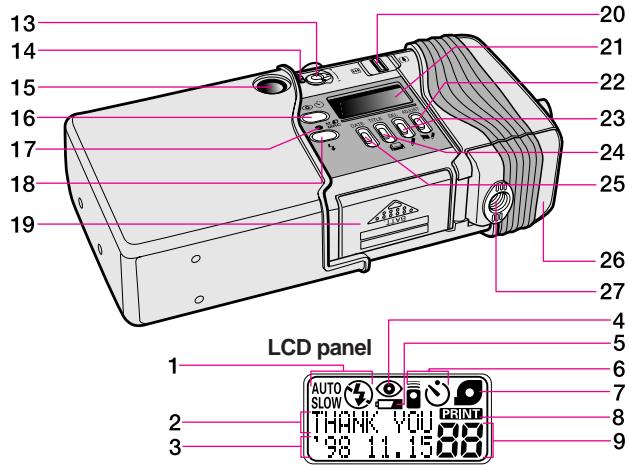
13 Diopter adjustment lever (P. 15)
14 Orange LED/Green LED (in-focus indicator) (P. 14)
15 Viewfinder eyepiece (P. 14)
16 📷/Red-eye reduction/Self-timer indicator/Remote control button (PP. 24-26)
17 Mid-roll rewind button (P. 19)
18 ↘/Flash mode button (PP. 21-23)
19 Battery chamber lid (P. 9)
20 Zoom lever (P. 15)
21 LCD panel
22 ADJUST/ button (PP. 27, 28, 30)
23 SEL/√ button (PP. 28, 30, 31)
24 TITLE/ button (PP. 27-29)
25 DATE button (P. 12)
26 Cartridge chamber cover (P. 10)
27 Tripod socket (P. 25)
LCD panel indications
1 Flash mode indicator (PP. 21-23)
2 Title recording indicator (PP. 28-29)
3 Date and time/Number of desired prints recording indicator (PP. 12, 27)
4 Red-eye reduction indicator (P. 24)
5 Low battery power indicator (P. 9)
6 Remote control/Self-timer indicator (PP. 25, 26)
7 Cartridge indicator (P. 11)
8 Data recording indicator (P. 12)
9 Frame counter (P. 11)
Tips on using the Nuvis S
Camera care tips
- Close the slide cover to turn the camera off when not in use. This prevents accidental release of the shutter and resulting battery drain.
- The Nuvis S is not a waterproof and therefore should not be exposed to rain or saltwater. If water gets on the camera, wipe it off with a dry cloth immediately.
- Do not subject the camera to high temperatures such as those encountered near a heater or stove or the interior of a car during summer.
- Store the camera in a cool, dry, clean place. Do not expose it to chemicals such as camphor or naphthalene. Using a desiccant during storage is recommended.
- Firing the flash repeatedly makes the battery and camera hot. Allow enough time for them to cool off before taking pictures again.
-
Do not drop the camera or hit it against a hard surface.
-
Use a dry, soft cotton cloth or commercially available blower brush or lens cleaner to remove dirt and smudges.
- When storing the camera for a long time, remove the battery. Also once a month, insert a battery and fire the flash several times to reform its capacitor.
Notes on battery
- Be sure to check battery power when taking important pictures. Carry spare batteries when traveling abroad.
- Battery power becomes less when the temperature drops below 0^ (32°F). When taking pictures at low temperatures, keep the battery warm. Battery power will recover when the temperature goes back to normal.
Notes on IX240 film cartridge
- Carrying spare IX240 film cartridges is recommended when traveling abroad where the IX240 film cartridges may not be available.
Nikon cannot be held responsible for malfunctions caused by using the Nuvis S in ways not specified in this manual.
Getting started
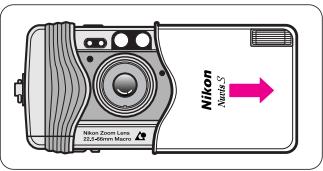
1 Open the slide cover until it click-stops.
When closing the slide cover, do not close it too quickly, as this may damage the lens.
Installing the battery
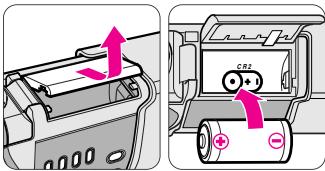
2 Install the battery.
▼ Open the battery chamber lid.
▼ Install one 3V lithium battery CR2 inside the battery chamber as shown.
▼ Close the battery chamber lid.
- Remember to reset the date and time when the battery is replaced. (P. 30)
Checking battery power
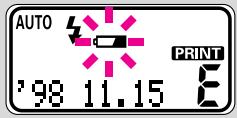
Check battery power.
▼ Open the slide cover to turn the camera on.
- The lens automatically extends out to the W (wide-angle) position.
- If “☐” blinks or nothing appears on the LCD panel, the battery is exhausted and needs to be replaced.
- If a low battery power indicator “☐” does not appear, battery power is full.
Loading the film
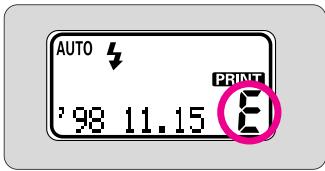
1 Open the slide cover to check that the letter “E” is visible on the LCD panel.
- If the number of frames appears on the LCD panel, a partially exposed cartridge is already loaded.
- If the letter “E” and the cartridge indicator “☐” appear on the LCD panel, a cartridge that is fully exposed is loaded and should be removed. (P. 17)
natural_image
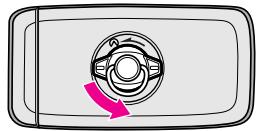
Diagram of a car front panel with a circular vent and directional arrow (no text or symbols)2 Turn the cartridge lock release lever in the direction of the arrow to open the cartridge chamber cover.
natural_image
Mechanical assembly diagram showing a component being inserted into a housing (no text or symbols visible)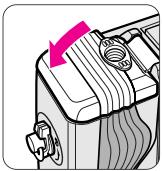
natural_image
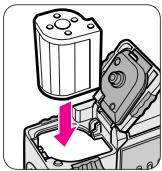
Illustration of a mechanical device with a pink arrow pointing to a component (no text or symbols)3 Insert a film cartridge in the cartridge chamber and close the cover.
- Use only IX240 film cartridge. (Regular 35mm film cannot be used.)
- Check that the VEI (Visual Exposure Indication) shows “○” (unexposed) or “D” (partially exposed) before loading. (P. 11)
- Close the cartridge chamber cover until it clicks shut.
IX240 film cartridge
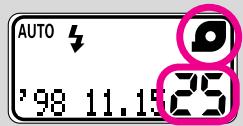
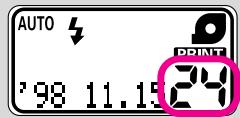
4 Check that “☐” and the available number of frames appear on the LCD panel.
- If the number of frames does not appear, reload the film.
- The letter “ ” blinks if a fully exposed film cartridge (the VEI shows “ ”) is inserted.
The cartridge chamber cover locks automatically after loading. Do not try to open the cover until film rewinding is completed.
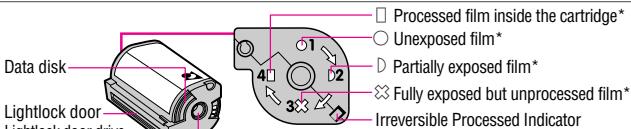
*Visual Exposure Indication (VEI)
- Available film cartridges: 40-exposure, 25-exposure, and 15-exposure films.
- IX240 film cartridges do not have a film leader. The film is automatically pulled out and set inside the camera.
- The VEI (Visual Exposure Indicator) shows the four states of the film.
Notes on handling IX240 film cartridges
- Do not touch, disassemble or apply strong physical shock to the Data disk, Lightlock door or Cartridge spool.
- Do not break the Irreversible Processed Indicator. If broken, consult your nearest photo lab.
- Do not subject the film to direct sunlight, high temperatures near a heater or stove, dust and humidity, or a strong magnetic field.
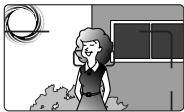
Data recording function
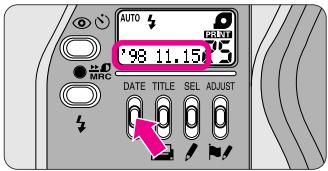
Set your preferable display mode.
▼ Press the DATE button.
- The “Year” section is displayed and printed in two digits and the “time” is in 24-hour cycle.
- “--” appears when “No recording” mode is selected.
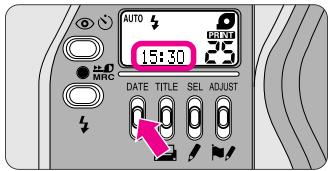
- Press the DATE button to select one of three displays. Each time the button is pressed, the display changes in the order indicated:

- Press and hold the DATE button for more than 2 sec. while “--” is displayed. The display changes in the order indicated:

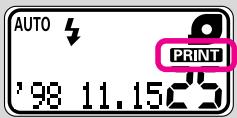
- When shooting while “PRINT” appeared on the LCD panel, data on the LCD will be recorded. No data is recorded when the “-- -” mode is selected.
- Ask your photo lab that displays an “Authorized Photo Lab Mark” sign for the location of the recorded data.
Basic operation
natural_image
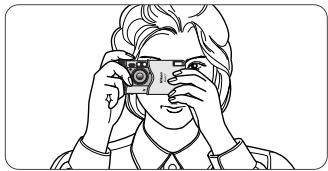
Line drawing of a person holding a camera, no text or symbols present- When holding the camera horizontally, keep your elbows against the body with both hands on the camera as shown.
- To avoid camera shake, hold the camera steady.
Holding the camera properly
natural_image
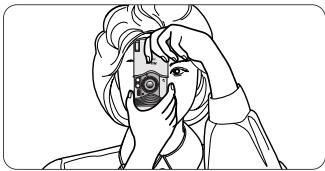
Line drawing of a person holding a camera, no text or symbols present- When holding the camera vertically, make sure that the flash is on top as shown.
Do not block the lens, flash, or autofocus window with your fingers or hair.
Shutter release operation

natural_image
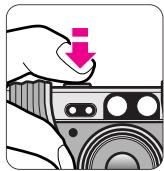
Illustration of a hand pressing down on a camera lens with a pink downward arrow (no text or symbols)- Lightly press the shutter release button to achieve focus and exposure and the green LED (in-focus indicator) lights up. While the shutter release button is depressed lightly, the focus is locked. (P. 20) Press the button all the way until you hear a click to release the shutter.
Viewfinder indications
flowchart
graph TD
    A["①"] --> B["②"]
    B --> C["③"]
    C --> D["④"]
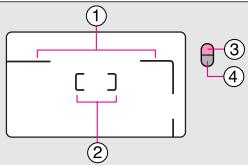
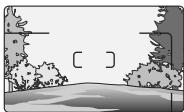
①Parallax compensation marks
For close-up shooting in C and H print types at a distance of approx. 1m to 0.45m(3.3 ft to 1.5 ft.) (P. 26)
②Autofocus frame mark
Center this mark on the subject.
③Orange LED
If lit continuously: Flash is ready to fire. If blinking: Flash is being charged and not ready to fire.
④Green LED
If lit continuously: Correct focus has been achieved. If blinking: Correct focus has not been achieved or the shooting distance is closer than approx. 0.45m (1.5 ft.)
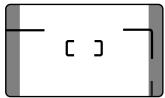
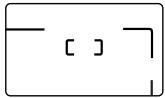
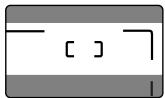
Available picture area
Areas cut off in the final print differ depending on the print type (C/H/P).
C-type
(classic)
Aspect ratio = 2 : 3
natural_image
Simple diagram with a rectangle and two horizontal lines, no text or symbols presentH-type
(wide-vision)
Aspect ratio = 9 : 16
natural_image
Simple geometric line drawing with no text, numbers, or symbolsP-type
(panorama)
Aspect ratio = 1 : 3
(Parallax compensation marks not usable.)
natural_image
Simple diagram with a horizontal bar and a rectangular box containing three vertical lines, no text or symbols present.Selecting a print type
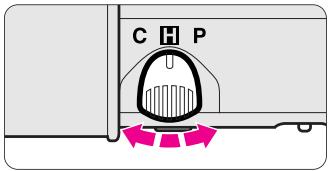
Use the CHP selector to select your desired print type before shooting.
- You can select any one of three print types (C, H or P) by switching the CHP selector at any time while film is loaded. (P. 4) Available picture area differs depending on the print type selected.
- You can also change the type of print when ordering extra prints at the photo lab.
CAUTION!
To prevent possible injury to your eye, hold the camera away from your face when you operate the CHP selector.
Adjusting diopter
natural_image
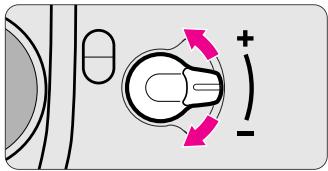
Diagram of a device with directional arrows and polarity indicators (no text or symbols)- Turn the diopter adjustment lever toward + or - to make the image sharper in the viewfinder.
CAUTION!
As you look into the viewfinder and operate the diopter adjustment lever, make sure not to injure your eye with your finger or fingernail during adjustment.
Zooming
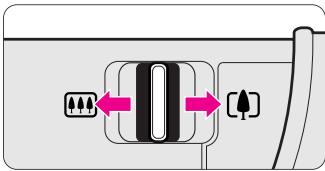
Look through the viewfinder and compose the picture by moving the zoom lever.
When the desired image size has been achieved, remove your finger from the zoom lever.
- When the camera is not in use for approx. 2 min., the lens automatically retracts to the (wideangle) position and the power turns off. Lightly press the shutter release button to turn the camera back on and the LCD panel will light up.
natural_image
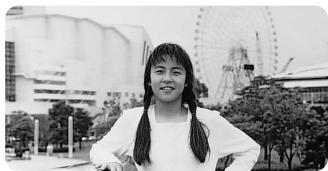
Black-and-white photo of a woman standing outdoors with a Ferris wheel in the background (no visible text or symbols)Move the zoom lever in the [▲] direction (66mm) to extend the lens for taking telephoto pictures.
natural_image
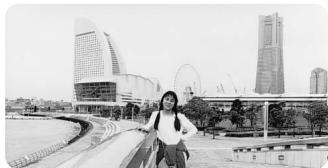
Black-and-white photo of a person walking on a curved path in front of modern skyscrapers and a large arched bridge (no visible text or signage)Move the zoom lever in the ♠♠♠ direction (22.5mm) to retract the lens for taking wide-angle pictures.
Focusing and shooting
natural_image
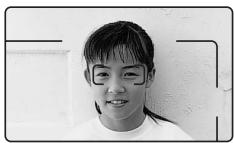
Black-and-white portrait of a smiling person wearing glasses (no text or symbols visible)1 Compose the picture.
- Center the autofocus frame mark on the subject.
natural_image
Illustration of a hand pressing down on a camera lens with a pink downward arrow (no text or symbols)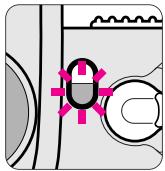
natural_image
Pure electrical circuit lines without any symbols2 Focus on the subject.
▼ Lightly press the shutter release button.
▼ Make sure the green LED lights up.
- The green LED lights up when the correct focus has been achieved.
- When the green LED blinks, the subject is out of focus. If the green LED blinks slowly, move more than 0.45m (1.5 ft) away from the subject and reshoot. If the green LED blinks quickly, the subject is difficult to focus. In this case, use focus lock. (P. 20)
natural_image
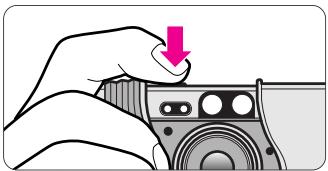
Illustration of a hand holding a camera lens with a pink downward arrow indicating action (no text or symbols present)3 Gently depress the shutter release button all the way to take a picture.
- If there is not enough light or the subject is backlit, the orange LED lights up and the flash fires automatically. (P. 21)
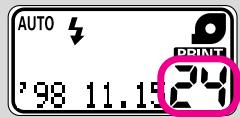
- After shooting, the number of available frames is reduced on the LCD panel one-by-one.
- Pressing the shutter release button with a jerky motion may cause camera shake.
Close the slide cover to turn the camera power off to save battery power.
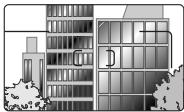
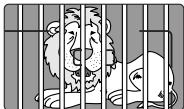
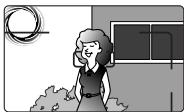
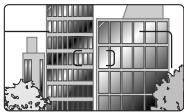
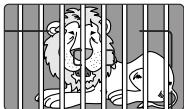
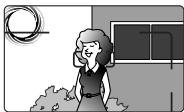
Difficult-to-focus subjects:
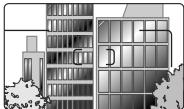
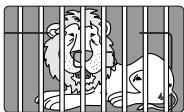
The following subjects may be too difficult to focus. In these cases, use focus lock (P. 20) by focusing on another subject equidistant from the camera.
A. Low-contrast subjects such as the blue sky or highly reflective surfaces like shiny cars or water.
B. Subjects with continuous and repeated patterns.
C. Both near and far subjects present at the same time within the autofocus frame mark.
D. Strongly backlit subjects or those having a bright shiny background.
A
natural_image
Simple line drawing of a landscape with trees, a road, and a bridge (no text or symbols)B
natural_image
Illustration of a modern multi-story building with windows and trees, no visible text or symbolsC
natural_image
Illustration of two lions behind vertical bars, one laughing and the other looking surprised (no text or symbols)D
natural_image
Illustration of a woman standing indoors with a circular window and abstract elements (no text or symbols)Removing the film
1 The film starts rewinding automatically.
- At the end of the film roll, the film rewinds automatically.
- While the film is rewinding, the frame counter counts down one by one and the orange LED blinks.
- If you want to remove the film while the number of available frames still appears on the LCD panel, rewind the film midway through the roll. (P. 19)
Removing the film
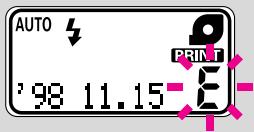
2 Make sure the blinking letter “E” is visible on the LCD panel.
- When the film is completely rewound, the orange LED goes out and the letter “E” blinks.
- If film rewind stops midway through the roll due to a dead battery, it resumes automatically as soon as the battery is replaced.

natural_image
Mechanical assembly diagram showing a component with a pink arrow indicating direction (no text or symbols present)3 Open the cartridge chamber cover and remove the film.
Do not open the cartridge chamber cover until the orange LED goes out and the letter “E” starts blinking.
- Releasing the shutter or setting the date and time cannot be performed unless the rewound film is removed.
- When opening the cartridge chamber cover, make sure that the camera bottom faces up, or the cartridge may fall out.
Take the exposed film cartridge to a photo lab.
Certified

Photofinishing Service
- We recommend bringing your film cartridge to a photo lab that displays an "Authorized Photo Lab Mark" sign above for processing and printing.
- Your negatives are returned inside the cartridge for easy storage.
- Index prints (small images of each frame exposed on the roll of film) are supplied with the negatives.
- For more information, consult your photo lab.
To rewind the film in mid-roll
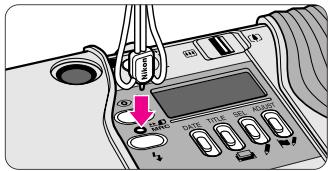
1 Press the MRC button using the stud on the strap lug or the point of ball-point pen.
- Once rewinding starts, there is no need to continue pressing the mid-roll rewind button.
- When rewind is completed, the orange LED goes out and the letter “ ” starts blinking. Do not try to open the cover until the letter “ ” starts blinking.
natural_image
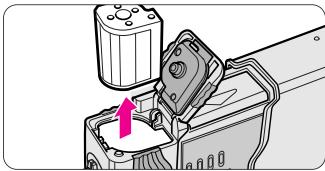
Mechanical assembly diagram showing a component being inserted into a housing (no text or symbols visible)2 Remove the film.
▼ Open the cartridge chamber cover.
▼ Remove the film.
▼ Check if the VEI (Visual Exposure Indication) shows D.
- If the VEI shows D (partially exposed film), the camera automatically advances the film to the frame immediately after the last exposed frame when the film is reloaded.
Notes on MRC
(Mid-Roll Change)
- A partially exposed film can be switched at any time among cameras that feature MRC, such as Nikon Pronea 600i/6i, Nuvis 160i, and Pronea S cameras.
- When reloading a partially exposed film, avoid an environment subject to strong electric or electromagnetic fields (for example, near a TV, personal computer, audio speaker, or an electric fan).
Advanced operation
How to use focus lock
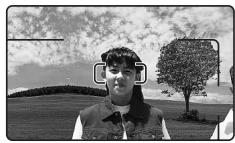
When your main subject is not in the center of the frame:
natural_image
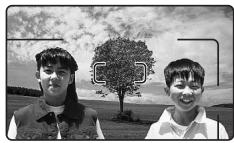
Black-and-white photo of two smiling people outdoors with a tree and sky in the background (no text or symbols visible)1 Compose the picture.
- When the main subject is outside the autofocus frame mark “C J”, the area behind the subject will be in focus.
natural_image
Black-and-white photo of a person standing outdoors with a tree and cloudy sky in the background (no visible text or symbols)
2 Center the autofocus frame mark on the main subject.
▼ Lightly press the shutter release button.
- Make sure that the green LED lights up.
natural_image
Black-and-white photo of two smiling people outdoors with a tree in the background (no visible text or symbols)
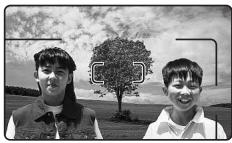
3 Recompose the picture and shoot.
While depressing the shutter release button lightly, recompose the picture.
▼ Then depress the shutter release button all the way.
- As long as the shutter button is depressed lightly, the green LED lights up and focus is locked.
- Do not change the camera-to-subject distance while lightly pressed the shutter release button.
Selecting the flash mode
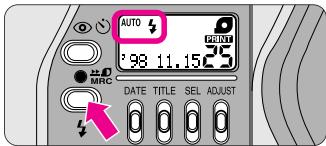
Press the ↓ button until the desired flash mode indicator appears.
- For details, see the reference page of each flash mode.
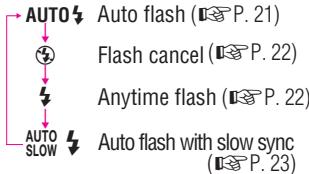
- When the camera power is turned off, the flash mode reverts to auto flash.
Auto flash photography
The flash automatically fires when the available light is low or the subject is backlit.
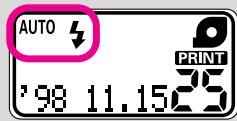
1 Open the slide cover to turn the camera on.
- When the camera is turned on, "AUTO ^5 " appears on the LCD panel. Auto flash mode is automatically activated.
- The camera senses when the available light is low or the subject is backlit and automatically fires the flash.
- When “⚡” appears on the LCD panel, the flash does not fire.
natural_image
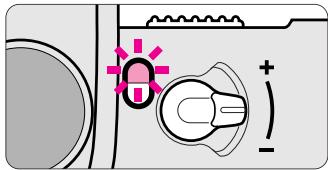
Diagram of a mechanical or electrical component with no visible text, numbers, or symbols2 Check that the orange LED comes on, then shoot.
- Before shooting with flash, make sure the subject is within the flash shooting distance range. Refer to the following guide (ISO 200).
(22.5mm): approx. 0.45 to 3.7m (1.5 to 12.1 ft.) (66mm) : approx. 0.45 to 2.6m (1.5 to 8.5 ft.) - If the orange LED is blinking, the flash is being charged and the shutter is locked. Reshoot after making sure that the orange LED lights up.
Flash cancel mode
Use this mode where flash photography is prohibited or to achieve a natural lighting effect in night scenes.
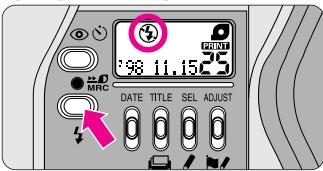
1 Press the ↓ button until “💡” appears on the LCD panel.
- Since slow shutter speeds are usually selected in this mode, use a tripod to prevent camera shake.
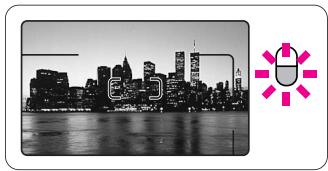
natural_image
Black and white city skyline at dusk with waterfront, overlaid with a pink circular icon featuring a medical cross symbol (no text or symbols on the skyline itself)2 Compose the picture and shoot.
▼ Lightly press the shutter release button.
▼ Make sure the green LED lights up, then depress the shutter release button all the way to take the picture.
Anytime flash mode
Use this mode to fire the flash intention
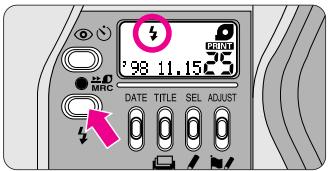
1 Press the ↓ button until “↓” appears on the LCD panel.
ally regardless of the available light.
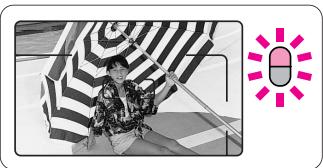
natural_image
Illustration of a person in striped zebra stripes with a pink pill icon nearby (no text or symbols)2 Compose the picture and shoot.
▼ Lightly press the shutter release button.
▼ Make sure the orange and green LEDs light up, then depress the shutter release button all the way to take the picture.
- If the orange LED is blinking, the flash is being charged. Reshoot after making sure that the orange LED lights up.
Slow sync flash mode
Use this mode to obtain the correct exposure for both the main subject and background in low-light situations or at night.
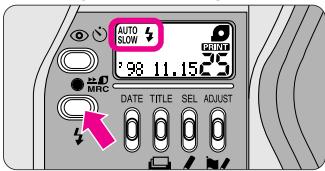
1 Press the ↓ button until “AUTO SLOW ↓” appears on the LCD panel.
- Since slow shutter speeds are usually selected in this mode, use a tripod to prevent camera shake.
- When the subject is bright, “💡” appears on the LCD panel and flash does not fire.
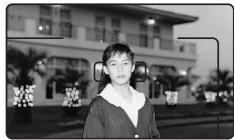
natural_image
Black-and-white photo of a person wearing headphones in front of a building with palm trees (no visible text or symbols)
2 Compose the picture and shoot.
▼ Lightly press the shutter release button.
▼ Make sure the orange and green LEDs light up, then depress the shutter release button all the way to take the picture.
- If the orange LED is blinking, the flash is being charged. Reshoot after making sure that the orange LED lights up.
Red-eye reduction mode
In flash photography, the subject's eyes may sometimes appear bright red. To reduce the "red-eye" effect, use this mode.
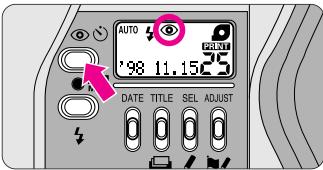
1 Press the 📷 button until “💡” appears on the LCD panel.
- Each time the Ⓞ button is pressed, the display changes in the order indicated.
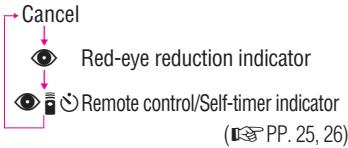
flowchart
graph TD
    A["Red-eye reduction indicator"] --> B["Remote control/Self-timer indicator"]
    B --> C["Cancel"]
natural_image
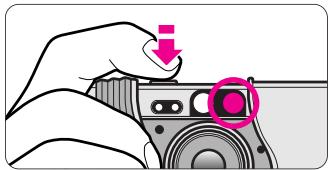
Hand holding a camera with a pink circular button highlighting the lens (no text or symbols present)2 Compose the picture and lightly press the shutter release button.
- Because the red-eye reduction lamp lights up for a second before the flash fires, be careful not to move the camera or let the subject move until the flash fires.
- The red-eye reduction mode is not recommended when shooting fast-moving subjects.
natural_image
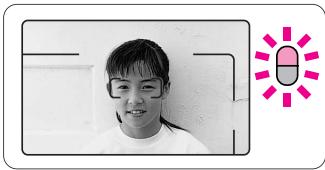
Black-and-white photo of a smiling person with glasses, next to a pink pill-shaped graphic (no text or symbols on the person or background)3 Check that the orange and green LEDs light up before shooting.
- If the orange LED is blinking, the flash is being charged. Reshoot after making sure that the orange LED lights up.
- To cancel the red-eye reduction mode, press the ⏻ button until “💡” disappears from the LCD panel. This mode cannot be canceled by turning the power off.
- Red-eye reduction and flash cancel modes can be set together, but in this case red-eye reduction cannot be performed.
Remote control photography (optional)
For releasing the shutter remotely:
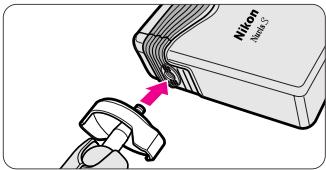
1 Place the camera on a tripod or a secure flat surface.
- Remote control extends up to approx. 5m (16.4 ft.) while facing the camera. If the camera-to-subject distance is more than 5m (16.4 ft.) away, use the self-timer mode. (P. 26)
- If the reception sensor on the camera is exposed to direct sunlight or other strong light, the remote controller will not operate properly.
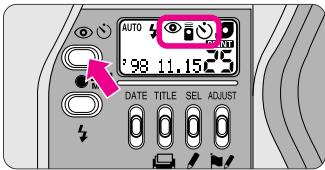
2 Press the 🎯 button until “💡 ➕ ” appears on the LCD panel.
- Remote control will be automatically canceled if not used for more than approx. 2 minutes or the slide cover is closed. That means that within 2 minutes after taking the last shots, you can still continue to shoot remotely.
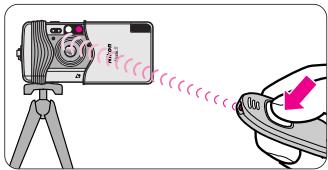
3 Compose the picture and shoot.
Aim the remote control unit at the camera and press the shutter release button on the unit.
- The red-eye reduction lamp lights up for approx. 2 sec. before the shutter is released.
- If the shutter cannot be released with the remote control, change the battery inside the remote control unit. (The life of the battery is approx. 10 years.) Visit an authorized Nikon dealer or service center to change it.
Self-timer operation
When you want to include yourself in the picture:
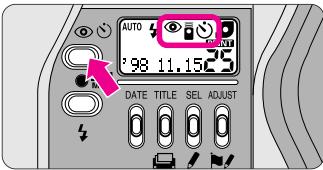
1 Press the 🎯 button until “💡 ➕ ” appears on the LCD panel.
- Self-timer operation will be automatically canceled if not used more than approx. 2 minutes or the slide cover is closed.
- Placing the camera on a tripod is recommended.
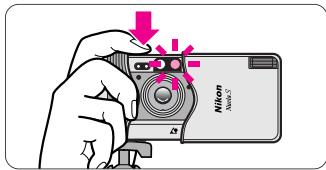
2 Compose the picture and depress the shutter release button all the way.
- The red-eye reduction lamp blinks for 8 sec., then lights up for 2 sec. before the shutter is released.
- Self-timer operation is canceled after shooting.
- To cancel self-timer operation, close the slide cover.
Close-up shooting
For taking subjects such as close-ups of flowers:
natural_image
Decorative floral border with three white roses and leaves, no text or symbols present
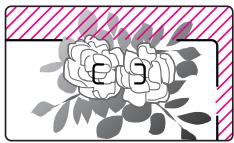
- When taking subjects within the range of approx. 1m to 0.45m (3.3 ft. to 1.5 ft.), compose the picture within the parallax compensation marks. (The parallax compensation marks cannot be used in P print type.) The area // as shown above will be cut off in the final print.
- When the subject is closer than approx. 0.45m (1.5 ft.), the green LED blinks slowly and the shutter is locked.
- If the subject is very close, the green LED blinks quickly and the shutter can be released, resulting in out-of-focus pictures.
Specifying the number of desired prints
The number of desired prints (1 to 9) can be specified frame by frame.
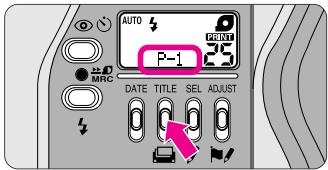
1 Set the number of desired prints before shooting.
▼ Press the 📄 button for more than 3 seconds until “P-1” appears.
- The number of desired prints (1 to 9) can be specified frame by frame.
- Be sure to cancel the title recording function when specifying the number of desired prints.(P. 29)
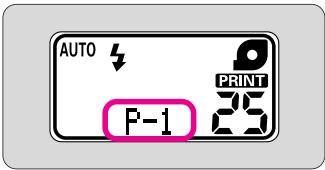
- “P-1” is displayed when the language code is set to other than JPN (Japanese). (P. 28)
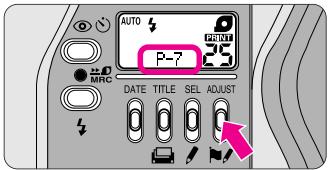
2 Set the number of desired prints.
▼ Press the ADJUST button to set the desired number of prints.
• Each time the ADJUST button is pressed, the number changes in increments of one from 1 to 9.
- The specified number is canceled after shooting.
- To cancel the number before shooting, set the number to "P-1".
Title recording function
For imprinting a title on the back of pictures:
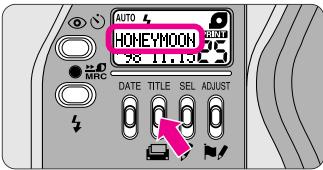
1 Press the TITLE button before shooting.
- The title “HONEYMOON” (in British English) is initially set at the factory and appears on the LCD panel when the TITLE button is pressed for the first time.
- Your preferred title and language can be selected among 30 titles and 12 languages. (P. 29)
- The title you set on the LCD panel can be recorded when a picture is taken.
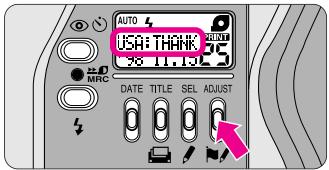
2 Set the language.
▼ Press the 📁/ button until the preferred language appears on the LCD panel.
- For example, if [USA] appears on the LCD panel, the language is American English.
- Pressing the 📋/ button continuously for more than 2 sec. changes the language quickly.
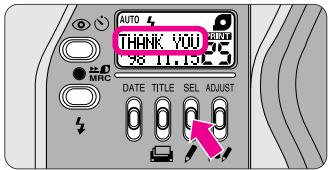
3 Set a title.
▼ Press the ↕ button until the preferred title appears on the LCD panel.
- Pressing the √ button continuously for more than 2 sec. changes the title quickly.
- The title set scrolls on the LCD panel and the first 9 letters are displayed after the scrolling stops.
Language provided
| Code | Language |
| DEN | Danish |
| FIN | Finnish |
| FRA | French |
| GER | German |
| ITA | Italian |
| JPN | Japanese |
| NOR | Norwegian |
| POR | Portuguese |
| ESP | Spanish |
| SWE | Swedish |
| GBR | British English |
| USA | American English |
Titles provided for British English
| HONEYMOON | CONGRATULATIONS |
| WEDDING | MERRY CHRISTMAS |
| HANUKKAH | FESTIVAL |
| GRADUATION | FIRST DAY OF SCHOOL |
| FAMILY | HAPPY NEW YEAR |
| PARTY | REUNION |
| HOLIDAY | FATHER’ S DAY |
| ANNIVERSARY OF MARRIAGE | MOTHER’ S DAY |
| FRIENDS | BAPTISM |
| SCHOOL EVENT | ST. VALENTINE’ S DAY |
| TRIP | GOOD FRIDAY |
| I LOVE YOU | EASTER MONDAY |
| THANK YOU | HAPPY EASTER |
| SEASON’S GREETINGS | ST. GEORGE’S DAY |
| HAPPY BIRTHDAY | MAY DAY HOLIDAY |
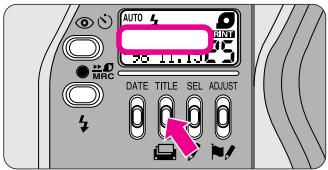
- To cancel the title recording function, press the TITLE button and make sure the title has disappeared.
For titles in other language, see the attached "List of Imprinted User Title".
Setting the date and time
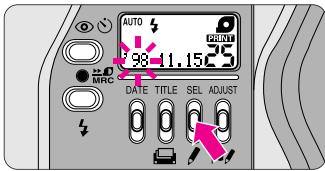
1 Entering the setting mode
▼ Press the SEL button for more than 2 seconds.
- The "year" section starts blinking.
- Be sure to cancel the title recording function when setting the date and time.
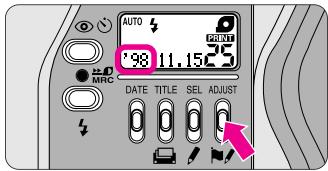
2 Setting the "year"
▼ Press the ADJUST button to set the correct year.
- Each time the ADJUST button is pressed, the number changes in increments of one.
- Pressing the ADJUST button continuously for more than 2 sec. changes the number quickly.
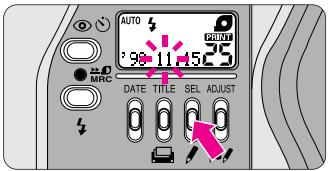
3 Setting the “month”
▼ Press the SEL button. The “month” section starts blinking.
▼ Press the ADJUST button to set the correct month.
▼ Press the SEL button.
- Repeat procedures 2 and 3 to set the day, hour and minute.
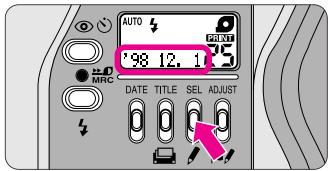
4 Getting out of the setting mode
▼ Press the SEL button and the corrected date appears on the LCD panel.
- If the slide cover is closed or the zoom lever is operated while the date/time setting is in progress, all the previously set data will be set at this time.
When the battery is replaced
- Note that 00 00 00 appears on the LCD panel when the battery is replaced.
- No data will be recorded if 00 00 00 appears on the LCD.
- Repeat procedures from 1 to 4 to set the date and time.
Troubleshooting
Check the cause of the trouble using the following chart. It may save you a trip to your nearest Nikon service center.
| Problem | Check this | Ref. page |
| The shutter cannot be released. | If the orange LED blinks when the shutter is released, the flash is being charged. Remove your finger from the shutter release button, wait until the orange LED lights up, then shoot.If the green LED blinks slowly when shutter is released, the subject is too close. Move farther away from the subject.If the letter “E” and the cartridge indicator “☐” appear on the LCD panel, the film loaded is not usable. Replace the film with a new cartridge.The slide cover is not fully opened and the power is not on. Open the slide cover until it click-stops. | 14, 2114, 2610, 17, 189 |
| The flash does not fire. | The flash will not fire and the orange LED blinks while the flash is being charged. Simply wait until the orange LED lights up before releasing the shutter.Check battery power. If the battery is exhausted, replace the battery with a fresh one.If the “♣” mark appears on the LCD panel, the flash will not fire. | 14, 21921 |
| The subject appears out of focus in the print. | Clean the autofocus windows if dirty.To avoid camera shake, gently depress the shutter release button.When photographing difficult-to-focus subjects, be sure to center the autofocus frame mark on the subject, or use focus lock. | 61317, 20 |
| The cartridge chamber cover does not open. | The film is not completely exposed. Take pictures up to the end of the roll, or rewind the film in mid-roll. | 11, 19 |
| No indicators appear on the LCD panel when the slide cover is opened. | The battery was not properly loaded in the battery chamber. Make sure to orient the positive (+) and negative (-) poles correctly.The battery is exhausted or no battery is installed. Install a new battery.If no indicators appear after installing a new battery, the camera is broken. In this case, contact your nearest Nikon dealer or a camera shop for repair. | 99- |
| The shutter cannot be released even if the shutter release button on the remote control unit is pressed. | You are out of the remote control working range. Move closer to the camera.If the remote control is exposed to direct sunlight or other strong light, change the location of the remote control.The battery in the remote control is exhausted. Do not attempt to replace the battery yourself, but go to a Nikon service center.Press the button once again until “appears on the LCD panel if the remote controller is not used for more than approx. 2 minutes. | 2525-25 |
A characteristic of electronic camera
In rare cases, when strong static electricity or the like is applied to the camera, the camera may not work properly. If this happens, remove the battery. Please note that the date and time must be reset when the battery is replaced, because settings are erased when the battery is removed. (P. 30)
Specifications
Type of camera
IX240 (Advanced Photo System) type autofocus AE lens-shutter camera with Nikon Zoom 22.5–66mm f/5.2–7.5 lens
Usable film
IX240 System (Advanced Photo System) film cartridge (16.7 x 30.2mm)
Print aspect ratio
C, H and P-type available
Lens
22.5mm f/5.2–66mm f/7.5 (28mm–82.5mm converted to 35mm type); 6 elements in 6 groups
Shutter
Programmed electronic shutter; also serves as diaphragm blades
Viewfinder
Real-image zoom viewfinder; frame coverage approx. 85% for H-type printed image area; approx. 0.34x magnification at 22.5mm, approx. 0.85x at 66mm; diopter adjustment: -1.5 to +1.5 DP
Viewfinder information
C/H/P-type image size frame marks (C-type and H-type with parallax compensation marks); Autofocus frame; Orange LED (flash ready-light)—Lights up: flash ready; Blinks: flash being charged; Green LED (in-focus indicator)—Lights up: subject focused, Blinks slowly (at 2Hz): subject is too close to achieve correct focus, Blinks quickly (at 8Hz): Subject is difficult to focus.
Focusing
Wide-area passive autofocus system; Activated by lightly pressing shutter release button; Distance range from 0.45m (1.5 ft.) to infinity
Focus lock
Focus is locked as long as shutter button is lightly pressed.
Exposure control
Electronically controlled program AE; Auto exposure range (ISO 200): EV 6-17 at 22.5mm, EV 6-18 at 66mm; Flash fires automatically if the available light is low.
Film speed setting
ISO 50, 100, 200, 400, 800 and 1600 film automatically set.
Film operation
Drop-in loading system; Wrong film loading prevention mechanism
Frame counter
Shown in the LCD panel; Count-down type
Self-timer
Electronically controlled; Activated by depressing shutter release button; 10 sec. duration, blinking/lighting up in 2 steps
Film advance
Film is automatically thrust to the first frame after inserting cartridge; Film automatically advances by one frame after each shot; Auto rewind at the end of film roll; Mid-roll rewind function available
Remote control (optional)
Infrared wireless remote control; 2 sec. delay shutter release; Automatically canceled after 2 min. if not used; Effective range is within approx. 5m (16 ft.) straight in front of the camera; Battery will last for approx. 10 years; Dimensions (W x H x D): approx. 60 x 27 x 10 mm (2.4 x 1.1 x 0.4 in.); Weight (including battery): approx. 13g (0.5 oz.)
Built-in flash
Four flash modes available: Auto flash, Flash cancel, Anytime flash, and Slow sync flash; Flash automatically fires when available light is low or subject is backlit; Flash shooting range: approx. 0.45–3.7m (1.5–12.1 ft.) at 22.5 mm, approx. 0.45–2.6 m (1.5–8.5 ft.) at 66mm (ISO 200); Shutter release button is locked during flash charging; Recycling time approx. 6 sec.
Red-eye reduction mode
Red-eye reduction lamp lights up for approx. 1 sec. before flash fires
Battery life
Approx. 10 rolls of 25-exposure film when flash is used for half of exposures.
LCD panel (Power is on)
Frame counter, Flash mode, Red-eye reduction, Remote control/Self-timer, Cartridge, Low battery power, Data recording, Title, and Number of desired prints
Power source
One 3V lithium battery CR2
Data recording function
Magnetic recording system; Date/Title/No. of desired prints; Date displaying in the LCD panel with five choices: Year/Month/Day, Hour/Minute, Month/Day/Year, Day/Month/Year, or No recording; 24-hour cycle with no AM/PM; leap year adjustment until 2030; Built-in clock with timing accuracy within ± 90 sec. a month; Power source is the same as the camera body; Number of desired prints (1 to 9) can be specified; Title recording function: selectable from 30 titles in 12 languages which can be printed on the back of pictures
Dimensions (W x H x D)
Approx. 93 x 65 x 32 mm (3.7 x 2.6 x 1.3 in.) (with slide cover closed)/approx. 130.5 x 65 x 32 mm (5.1 x 2.6 x 1.3 in.) (with slide cover open)
Weight (without battery)
Approx. 230g (8.1 oz.)
For safe handling of the camera
WARNING
- Do not attempt to disassemble, repair, or modify the camera yourself, as it houses high-voltage circuitry which can cause an electric shock. Another reason is that these actions could cause the camera to malfunction.
- If the camera is dropped and damaged, do not touch any exposed interior metal parts, as it houses high-voltage circuitry which can cause an electric shock. Remove the battery and take the camera to your local Nikon dealer for repair.
- If you detect smoke coming from the camera, stop operation immediately and turn the camera off. Let the camera cool off before removing the battery. Then take the camera to your local Nikon dealer for repair.
- Do not submerge the camera in water or allow water to splash on it, as this may cause an electric shock or a fire.
-
Do not operate the camera in an environment containing a combustible gas, as this may cause a fire or explosion.
-
Do not look at the sun or a strong light source directly through the viewfinder, as this may damage your retina, resulting in permanent eye damage.
- Do not let the strap wind around your neck. In particular, never put the strap around a child's neck, as this may cause suffocation.
- Keep batteries out of the reach of children. If a battery is accidentally swallowed, call a doctor immediately.
- Never use thinner, benzene, or other active agents for cleaning the camera, as this may damage the camera, cause it to catch on fire, or harm your health.
CAUTION
- Do not operate the camera with wet hands, as this may cause an electric shock.
- Keep the camera out of reach of children. This will prevent them from swallowing batteries or small accessories.
- To prevent possible injury to your eye, hold the camera away from your face when you operate the CHP selector.
- Do not fire the flash close to a person's eyes, as this may cause temporary blindness.
- When the camera is not in use, close the slide cover and avoid placing it in direct sunlight. Strong sunlight entering the lens may cause the camera to catch on fire.
- Do not carry the camera while it's mounted on a tripod, as you might bump into something and injure yourself or others.
-
Do not walk around while looking through the viewfinder, as you might lose your step, fall down, and injure yourself.
-
Do not throw used batteries into a fire. Also do not short-circuit, disassemble, or heat the battery, as this may cause it to catch on fire or explode.
- Always follow the warning instructions printed on batteries to prevent them from catching on fire or exploding.
- Never use batteries not specified in this instruction manual, as this may cause them to generate heat or catch on fire.
- If corrosive liquids seep from the battery and get on your skin or clothes, wash immediately with running water. If they get in your eyes, wash immediately with water and see a doctor.
- As you look into the viewfinder and operate the diopter adjustment lever, make sure not to injure your eye with your finger or fingernail during adjustment.
Vorwort
natural_image
Line drawing of a coiled rope or strap with a strap (no text or symbols)Trageschnur AN-L16
natural_image
Illustration of a hand holding a cable with a pink arrow indicating direction (no text or symbols)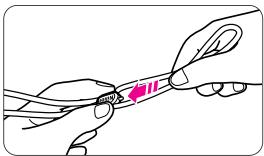
natural_image
Illustration of two hands holding a thin wire with a pink arrow pointing to the tip (no text or symbols)natural_image
Black-and-white photo of a girl standing on a wooden bridge with houses and trees in the background (no visible text or symbols)Classic-Bild C
natural_image
Black-and-white photo of a person standing on a wooden bridge with buildings in the background (no visible text or symbols)Breitbild H
natural_image
Black-and-white photo of a woman standing on a wooden bridge with buildings in the background (no visible text or symbols)Panorama-Bild P
natural_image
Diagram of a car front panel with a circular vent and directional arrow (no text or symbols)natural_image
Diagram showing a mechanical device with a highlighted component and a pink arrow indicating downward motion (no text or symbols present)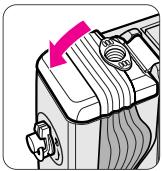
natural_image
Illustration of a mechanical device with a pink arrow pointing to a component (no text or symbols)natural_image
Line drawing of a person holding a camera (no text or symbols)natural_image
Line drawing of a person holding a camera, no text or symbols presentnatural_image
Illustration of a hand pressing down on a camera lens with a pink downward arrow (no text or symbols)natural_image
Simple diagram with a rectangle and two horizontal lines, no text or symbols presentBreitbild (H)
natural_image
Pure geometric lines forming a right angle and two parallel square notches inside a rectangle (no text or symbols)Panorama-Bild (P)
natural_image
Simple diagram with a horizontal bar and two vertical lines, no text or symbols presentnatural_image
Diagram of a device with directional arrows and polarity indicators (no text or symbols)natural_image
Black-and-white photo of a woman standing outdoors with a Ferris wheel in the background (no visible text or symbols)natural_image
Black-and-white photo of a person walking on a curved path in front of modern skyscrapers and a curved bridge (no visible text or signage)natural_image
Black-and-white portrait of a smiling person wearing glasses (no text or symbols visible)natural_image
Illustration of a hand holding a camera lens with a pink downward arrow indicating action (no text or symbols present)natural_image
Simple line drawing of a landscape with trees, a road, and a bridge (no text or symbols)B
natural_image
Illustration of a modern office building with glass windows and trees (no text or symbols)C
natural_image
Illustration of two lions in a cage, one laughing and the other looking surprised (no text or symbols)D
natural_image
Illustration of a woman standing indoors with a circular window and abstract shapes in the background (no text or symbols)Entnehmen des Films
natural_image
Mechanical assembly diagram showing a component with a pink arrow indicating direction (no text or symbols present)natural_image
Mechanical assembly diagram showing a component with a highlighted arrow (no text or symbols)natural_image
Black-and-white photo of two smiling people outdoors with a tree and sky in the background (no text or symbols visible)natural_image
Black-and-white photo of a person standing outdoors with a tree and cloudy sky in the background (no visible text or symbols)
natural_image
Black-and-white photo of two smiling people outdoors with a tree in the background (no visible text or symbols)
natural_image
Diagram of a mechanical component with highlighted features and polarity indicators (no text or symbols)natural_image
Black-and-white cityscape with waterfront and modern skyscrapers, no visible text or symbolsnatural_image
Black-and-white photo of a person holding a striped umbrella, with a pink pill and sunburst graphic in the corner (no text or symbols)natural_image
Black-and-white photo of a person standing in front of a building with palm trees and a colorful sunburst graphic on the right (no text or symbols)natural_image
Illustration of a hand holding a camera with a pink downward arrow and a circular button (no text or symbols)natural_image
Black-and-white photo of a smiling person wearing glasses, next to a pink circular graphic with radiating lines (no text or symbols)natural_image
Illustration of a camera setup with a tripod and a hand holding a phone, emitting sound waves (no text or symbols)natural_image
Hand holding a Nikon smartphone with a red arrow indicating compression (no text or symbols on the device itself)natural_image
Illustration of a stylized flower with petals and leaves, enclosed in a rectangular frame with diagonal stripes (no text or symbols)natural_image
Line drawing of a rope tied with a strap (no text or symbols)Bandoulière AN-L16
Accessoires en option
natural_image
Black-and-white photo of a girl standing on a wooden bridge with buildings in the background (no visible text or symbols)natural_image
Black-and-white photo of a person standing on a wooden bridge with buildings and trees in the background (no visible text or symbols)Format H (vision large)
Rapport vertical/horizontal = 9:16

natural_image
Black-and-white photo of a woman standing on a wooden bridge with houses in the background (no visible text or symbols)Format P (panorama)
Rapport vertical/horizontal = 1:3
2 Insérez la pile.
natural_image
Diagram of a car front panel with a circular vent and directional arrow (no text or symbols)natural_image
Diagram of a mechanical device with a highlighted component and arrow indicating downward motion (no text or symbols)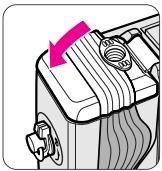
natural_image
Illustration of a mechanical device with a pink arrow pointing to a component (no text or symbols)natural_image
Line drawing of a person holding a camera, no text or symbols presentnatural_image
Line drawing of a person holding a camera, no text or symbols presentnatural_image
Illustration of a hand pressing down on a camera lens with a pink downward arrow (no text or symbols)natural_image
Simple diagram with a rectangle and two horizontal lines, no text or symbols present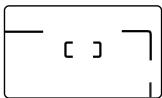
natural_image
Pure geometric lines forming a right angle and two small squares inside a rectangle (no text or symbols)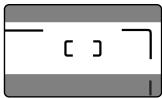
natural_image
Simple diagram with horizontal bars and a central rectangular shape containing two right-angle symbols (no text or labels)natural_image
Diagram of a device with directional arrows and polarity indicators (no text or symbols)natural_image
Black-and-white photo of a woman standing in front of a modern building with a Ferris wheel in the background (no visible text or symbols)natural_image
Black-and-white photo of a person posing in front of modern skyscrapers and curved waterways (no visible text or signage)natural_image
Black-and-white portrait of a smiling person with short hair, wearing a white top (no text or symbols visible)1 Composez l'image
natural_image
Illustration of a hand holding a camera lens with a pink arrow pointing to the lens (no text or symbols present)natural_image
Simple line drawing of a landscape with trees, a road, and a fence (no text or symbols)B
natural_image
Illustration of a modern multi-story building with glass windows and trees (no text or symbols)C
natural_image
Illustration of a lion in a cage with teeth and mouth open, no text or symbols presentD
natural_image
Illustration of a woman talking on the phone with a circular window and abstract background elements (no text or symbols)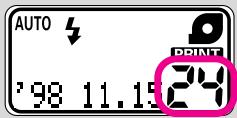
natural_image
Mechanical assembly diagram showing a motor and housing component with an arrow indicating motion (no text or symbols)natural_image
Mechanical assembly diagram showing a component with a highlighted arrow (no text or symbols)2 Retirez le film.
natural_image
Black-and-white photo of two smiling people outdoors with a tree and sky in the background (no text or symbols visible)1 Composez l'image.
natural_image
Black-and-white photo of a person standing outdoors with a tree and cloudy sky in the background (no visible text or symbols)
natural_image
Black-and-white photo of two smiling people outdoors with a tree and sky in the background (no text or symbols visible)
natural_image
Diagram of a mechanical or electrical component with no visible text, numbers, or symbolsnatural_image
Black-and-white cityscape at dusk with illuminated skyscrapers and waterfront, alongside a pink circular logo with a stylized 'U' symbol (no text or symbols on buildings)natural_image
Illustration of a person sitting under striped umbrellas with a pink pill icon nearby (no text or symbols)natural_image
Black-and-white photo of a person wearing headphones, standing in front of a building with palm trees (no visible text or symbols)
natural_image
Illustration of a hand holding a camera with a pink downward arrow and a circular button (no text or symbols)natural_image
Black-and-white photo of a smiling person with glasses, next to a pink pill-shaped graphic (no text or symbols)natural_image
Illustration of a card with two peony flowers and a capsule, no text or symbols presentDimensions (L x H x E)
No reproduction in any form of this manual, in whole or in part (except for brief quotation in critical articles or reviews), may be made without written authorization from NIKON CORPORATION.